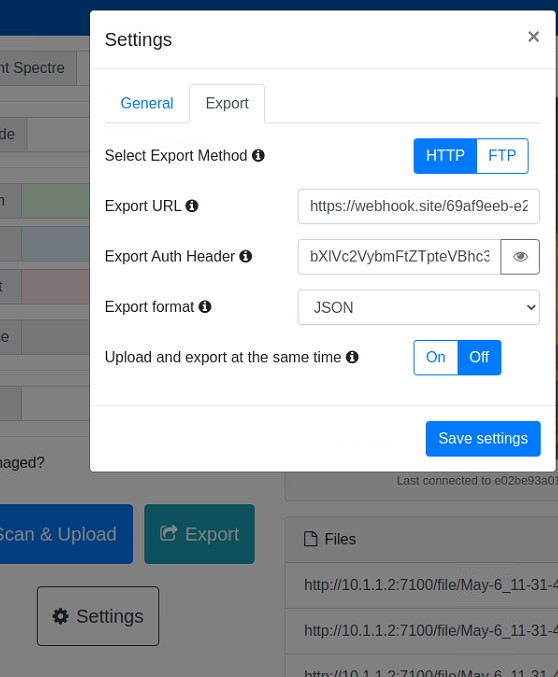
Exporting from the Remote-Control Web GUI
Cargo Spectre provides a text field that allows users to input a password when exporting to an endpoint URL. Typically this is done via the Basic authentication scheme defined by RFC 7617. For more information, please see here.
Check with your integration software developers on what your authentication credentials are, how the authentication string should be created, etc.
"Basic Auth"-Encoded Authentication Info
Cargo Spectre suggests a Basic Auth encoded authentication string. This is typically created in the following format as one single block:
username:password
It should be noted that the whole value above is encoded together, as opposed to the username and password being encoded separately and then joined with a :.
Get Your "Basic Auth" Authentication String
Type myUsername into the field, then click "Encode". You will receive back bXlVc2VybmFtZQ==. Now type myPassword and note you'll receive back bXlQYXNzd29yZA==.
Now try myUsername:myPassword. You should receive back bXlVc2VybmFtZTpteVBhc3N3b3Jk. Note that the result is different from simply combining the two prior results like bXlVc2VybmFtZQ==bXlQYXNzd29yZA== or with a colon like bXlVc2VybmFtZQ==:bXlQYXNzd29yZA==.
If you've received a Basic auth compatible username and password from your integration provider and they confirmed that the structure should username:password, then just type that into the field above, encode, copy the result, and paste into the Auth header field in the remote control settings.
With a username and password of "myUsername" and "myPassword" we generated a Basic auth header of bXlVc2VybmFtZTpteVBhc3N3b3Jk and this was inputted into the middle text field.